Webcam Wonders: How to Turn Your iPhone into a Webcam
Take advantage of your iPhone’s superb camera features!
December 11, 2025 / by Gracey Maala / 3 mins read
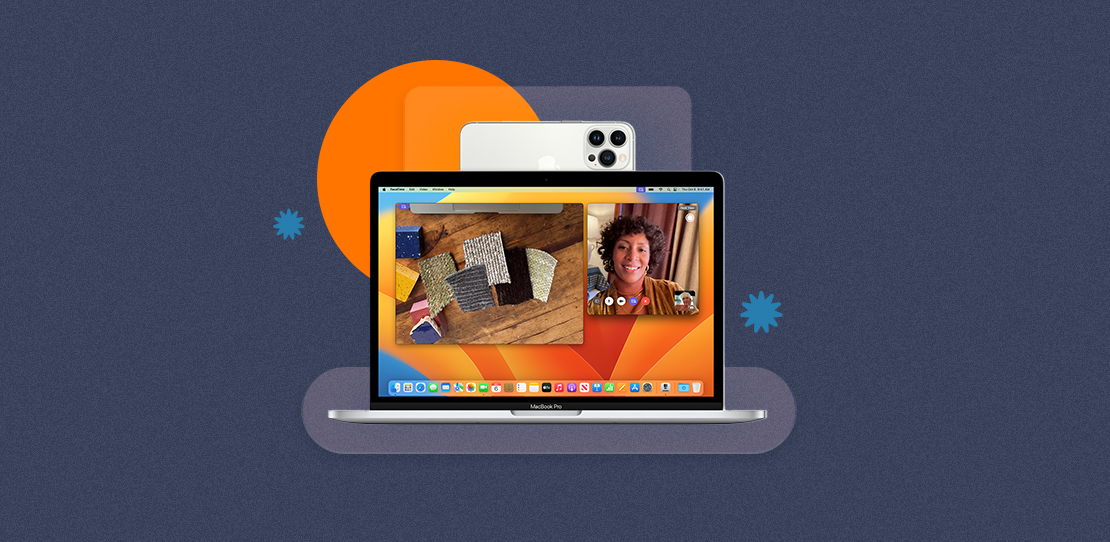
In today’s hybrid work setting, having a high-quality webcam is a must. It’s not just essential for remote workers, but it also benefits content creators and students. Good thing, Mac users might see a helpful prompt during video calls on certain platforms: “Use iPhone as a Webcam.” I often encounter this prompt, and it sparked my curiosity about how it works, so I dug deeper.
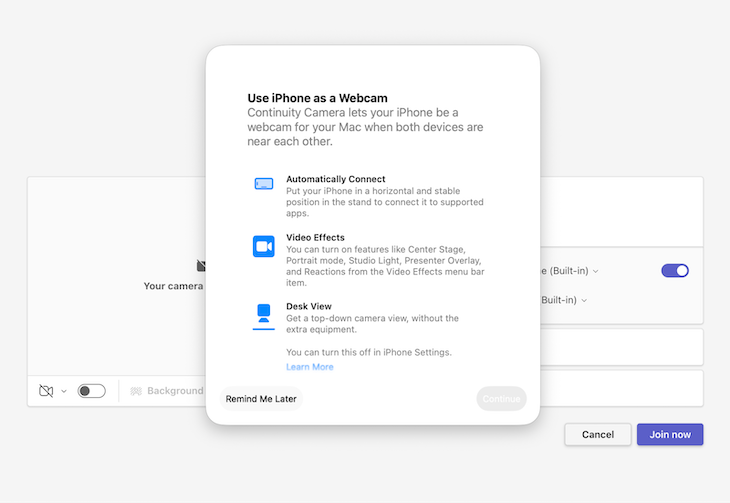
Courtesy Gracey Maala
This feature, called Continuity Camera, is integrated into the Apple ecosystem, enabling you to easily turn your iPhone into a high-quality, wireless webcam for your Mac. While dedicated webcams provide excellent performance (and we offer great options at the Next Upgrade Shop!), this feature utilizes the advanced camera technology built into every iPhone.
The power of Continuity Camera
The difference in quality between a standard laptop camera and the advanced features in any modern iPhone is huge, so it’s a good idea to maximize your iPhone’s camera! iPhones come with high-quality lenses and sensors. Plus, features like Continuity Camera include Studio Light, Portrait Mode, Center Stage, and Desk View, ideal for calls and sharing visuals.
System requirements to get started
For the iPhone:
iOS 16 or later
iPhone XR or later (all models introduced in 2018 or later)
For the Mac:
macOS Ventura or later
Any Mac compatible with macOS Ventura or later
Set up your Mac effortlessly in three steps
Using your iPhone as a webcam is easy and wireless. However, connecting through USB adds the bonus of charging your device and a more dependable connection. If your devices meet the basic requirements, you won’t need any complicated drivers or apps. Here’s a simple guide to get you started:

From All The Anime - Anime Limited Official GIPHY
Step 1: Sign in to both devices with the same Apple ID. Make sure to enable Two-Factor Authentication (2FA) and keep WiFi and Bluetooth enabled for seamless connectivity. On your iPhone, go to Settings > General > AirDrop & Continuity, and check that Continuity Camera is enabled. This will help ensure everything works smoothly.
Step 2: Next, place your iPhone on a stand in front of your Mac, secure it in landscape mode with the screen locked for best video quality.

From Prandible Official GIPHY
Step 3: Finally, launch a video app such as FaceTime, Zoom, Teams, or Photo Booth. Choose your iPhone as the camera in the app settings. Your iPhone will stream video, enabling features such as Center Stage and Portrait Mode.
Now you’re ready to use your iPhone as a webcam! If you want to know more and dig deeper, visit the Apple Support page.
The choice is yours!
There’s no doubt that iPhones have a great camera, but dedicated webcams are still very useful, especially for PC users who want a hands-free experience. At the Next Upgrade Shop, we offer reliable webcams from brands like AVerMedia and Rapoo. They’re just as easy to set up—simply plug into a USB port, with no additional software required.
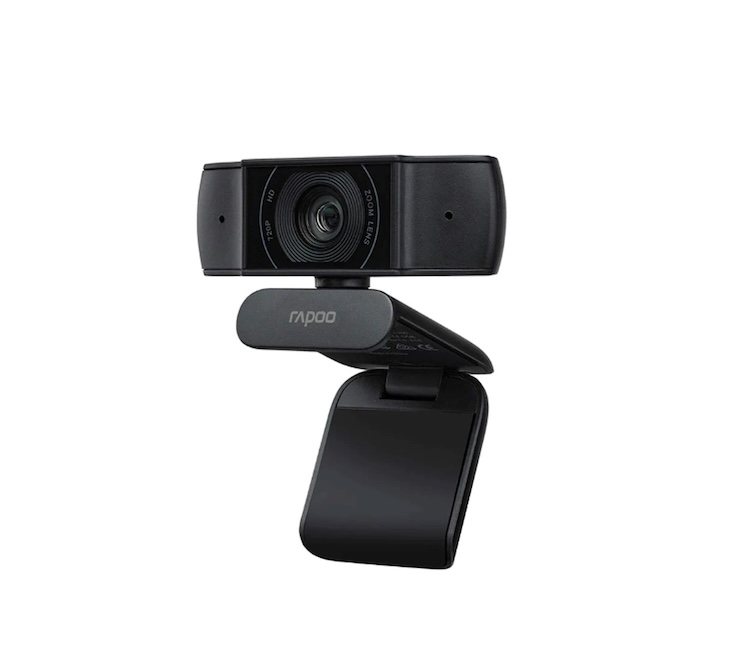
Courtesy Next Upgrade Shop
These webcam options attach directly to your monitor without requiring special mounts and work with Windows and other operating systems. Whether you’re using an iPhone 15, 14, or 13 (or even an older model!) for its camera quality, or you prefer a dedicated webcam for better PC compatibility, the Next Upgrade Shop has a variety of options!

AUTHOR
Gracey Maala
Associate Editor
Gracey is the associate editor of Next Upgrade, working as the cheerful sidekick of the editorial board. She also leads writing for the Technology section and loves to explore all things tech! During her free time, she enjoys watching movies and series and bonding with her mom, three cats, and a dog.
